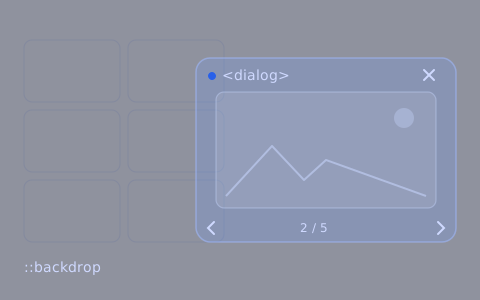
The project pages in this portfolio have a screenshot gallery. A click on a screenshot opens a full-screen preview with arrows and a counter. Before, I always wrote windows like this myself: popups, modals, a dark background and code that listens for the Esc key. This time I wanted to try the native <dialog> element. Semantics were important to me too – a window with content should be a window for the browser and the screen reader as well, not a plain <div>.
What the browser does by itself
<dialog> has worked in all major browsers since March 2022. When you open it with showModal(), the browser by itself:
- shows the window above the whole page (in a separate layer, no fighting with
z-index), - blocks the rest of the page – you can't click or tab to the elements underneath,
- closes the window with the Esc key,
- adds a
::backdropthat darkens the page by default.
That's everything I used to write myself in every project. A simplified skeleton looks like this:
<button type="button" id="open">Enlarge screenshot</button>

<dialog id="preview" aria-label="Screenshot preview">
  <button type="button" id="close">Close</button>
  <img src="screenshot.webp" alt="Project home page">
</dialog>

<script>
  const preview = document.getElementById('preview')
  document.getElementById('open').addEventListener('click', () => preview.showModal())
  document.getElementById('close').addEventListener('click', () => preview.close())
</script>
What I had to add
In Vue the gallery is one component. The dialog has a ref, and functions open and close it. The code below is a simplified version of that component. Still, the browser leaves a few things to the developer.
Scrolling the page underneath. An open dialog doesn't block page scrolling, so with the preview open, the mouse wheel moved the page in the background. I added a scroll lock while the preview is open. You can do the same in CSS alone: html:has(dialog[open]) { overflow: hidden; }.
A click on the background. Esc closes the window, but a click next to the image doesn't. In Vue the .self modifier was enough: I close the window only when the click was on the dialog itself, not on the image or a button inside.
Returning focus. After closing, focus should go back to the screenshot that opened the preview. Then a keyboard user is still in the same place on the page. Closing with the button, the Esc key and a click on the background all fire the same close event, so I clean up in one place:
const dialog = ref(null)
const opener = ref(null)

function open(event) {
  opener.value = event.currentTarget
  dialog.value.showModal()
  document.documentElement.style.overflow = 'hidden'
}

// button, Esc and a click on the background – always the same close event
function onClose() {
  document.documentElement.style.overflow = ''
  opener.value?.focus()
}
<dialog ref="dialog" aria-label="Screenshot preview" @close="onClose" @click.self="dialog.close()">
  …
</dialog>
Arrows. I handle the ← and → keys myself, with a keydown event on the dialog. The "2 / 5" counter has aria-live="polite", so a screen reader reads it after the image changes.
The background you can't see here
::backdrop was my favourite part, because it darkens the page without an extra element. In this gallery, though, the preview covers the whole screen and has its own dark background, so I made ::backdrop transparent. In a smaller window, for example with a form, one rule is enough:
dialog::backdrop {
  background: rgb(0 0 0 / 0.6);
}
What came out of it
- The native
<dialog>gives you a layer above the page, a blocked page underneath, Esc and a background for free – things I used to write myself. - Scrolling the page underneath, a click on the background and returning focus are up to you.
- The
closeevent is one place to clean up, no matter how the window was closed. - The preview code is shorter than in my old modals, and the semantics are right from the start.