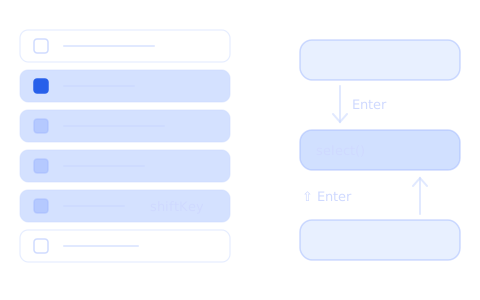

The AgrestApp panel has many long lists: raw materials, products, packaging, prices, notifications. With lists like these, clicking row by row takes the most time. The client asked for two shortcuts everyone knows from a spreadsheet or an email inbox: Shift-click selects a range of rows, and Enter moves to the same field in the row below. The idea was to select a few items and edit them at once instead of product by product, and to update prices in one table, like in Excel. The screenshots below come from a local version with made-up data. The code in this post shows simplified examples I wrote for this text – it isn't the code from AgrestApp.
Shift-click: selecting a range
It works like in an email inbox: you click the checkbox in one row, then click another one while holding Shift. Both rows and everything between them get selected. If the second click unchecks a row, the whole range gets unchecked. In the panel it works in 9 lists.
I had to hook into the existing code, and every table was built a bit differently. That's why the bulk action button doesn't take only an array with the ids of the selected rows – depending on the place, I pass it either the id or the whole object and only then prepare the data to send.

The simplest version has three traps:
- The row number instead of a key. It's easy to remember the number of the last clicked row. It works until someone sorts the list, changes a filter or loads more rows. Then row 3 is a different row and the wrong range gets selected. It's safer to remember the row's
idand look for its position only when the click happens. - The order from the data instead of the screen. After sorting and filtering, the order on the screen is different from the data from the server. The range has to match what the user sees.
- Selected text. In a browser, Shift-click also selects the text between the clicks. You can block this only while Shift is pressed – then normal text selection in the table still works.
A simplified version as a composable, without these traps:
import { ref, toValue } from 'vue'

export function useRangeSelection(rows, key = 'id') {
  const selected = ref(new Set())
  // the key of the last clicked row – not its number
  const anchor = ref(null)

  function toggle(row, event) {
    const id = row[key]
    const select = !selected.value.has(id)
    const list = toValue(rows) // rows in the order you see on the screen
    const from = list.findIndex((r) => r[key] === anchor.value)
    const to = list.findIndex((r) => r[key] === id)

    const ids = event?.shiftKey && from !== -1
      ? list.slice(Math.min(from, to), Math.max(from, to) + 1).map((r) => r[key])
      : [id]

    const next = new Set(selected.value)
    for (const rowId of ids) {
      if (select) next.add(rowId)
      else next.delete(rowId)
    }
    selected.value = next
    anchor.value = id
  }

  return { selected, toggle }
}
<input
  type="checkbox"
  :checked="selected.has(row.id)"
  @mousedown="$event.shiftKey && $event.preventDefault()"
  @click="toggle(row, $event)"
>
A Set checks whether a row is selected without searching the whole array. On every change I create a new Set, so Vue surely notices the change.
Enter: the field in the row below
In "Offer management" a supplier sets the prices of all their items: the net base price, the default markup and their own net price. Suppliers update their prices from time to time and wanted to do it in one table, like in Excel. Now Enter moves to the same field in the row below, and Shift + Enter to the row above. The value of the new field is already selected, so you can just type the new price. The individual price dialog works the same way.

In the example, each field gets a row number and a column name in data-* attributes. After Enter, the function looks for the field with the same column and the next row number:
<script setup>
function moveOnEnter(event, row) {
  // Enter normally submits a form – here it should only move the cursor
  event.preventDefault()

  const column = event.currentTarget.dataset.column
  const next = row + (event.shiftKey ? -1 : 1)
  const input = document.querySelector(
    `[data-row="${next}"][data-column="${column}"] input`,
  )

  input?.focus()
  input?.select()
}
</script>

<template>
  <div
    v-for="(item, index) in items"
    :key="item.id"
    :data-row="index"
    data-column="price"
    @keydown.enter="moveOnEnter($event, index)"
  >
    <input v-model="item.price" inputmode="decimal">
  </div>
</template>
Thanks to the column name in the attribute, one function is enough for every column, and for both the table and the individual price dialog. On the last row Enter does nothing – there's no field below, so the cursor stays where it is.
What came out of it
- Shift-click in 9 lists in the panel.
- Enter and Shift + Enter in the price table and in the individual price dialog – you type new prices without reaching for the mouse.
- Both are just a little code, but they save the most clicking where users go through a whole list.
- When you select a range, remember the row's key, not its number – then sorting and filters don't break the range.